
Introduction
Apple TV allows users to enhance their viewing experience by customizing their screensaver. Changing this feature not only adds a personal touch but also improves the aesthetic appeal of your living area. This guide will walk you through the process of changing your Apple TV screensaver, customizing it for different moods, and addressing common issues that might occur.
Understanding Apple TV Screensaver Options
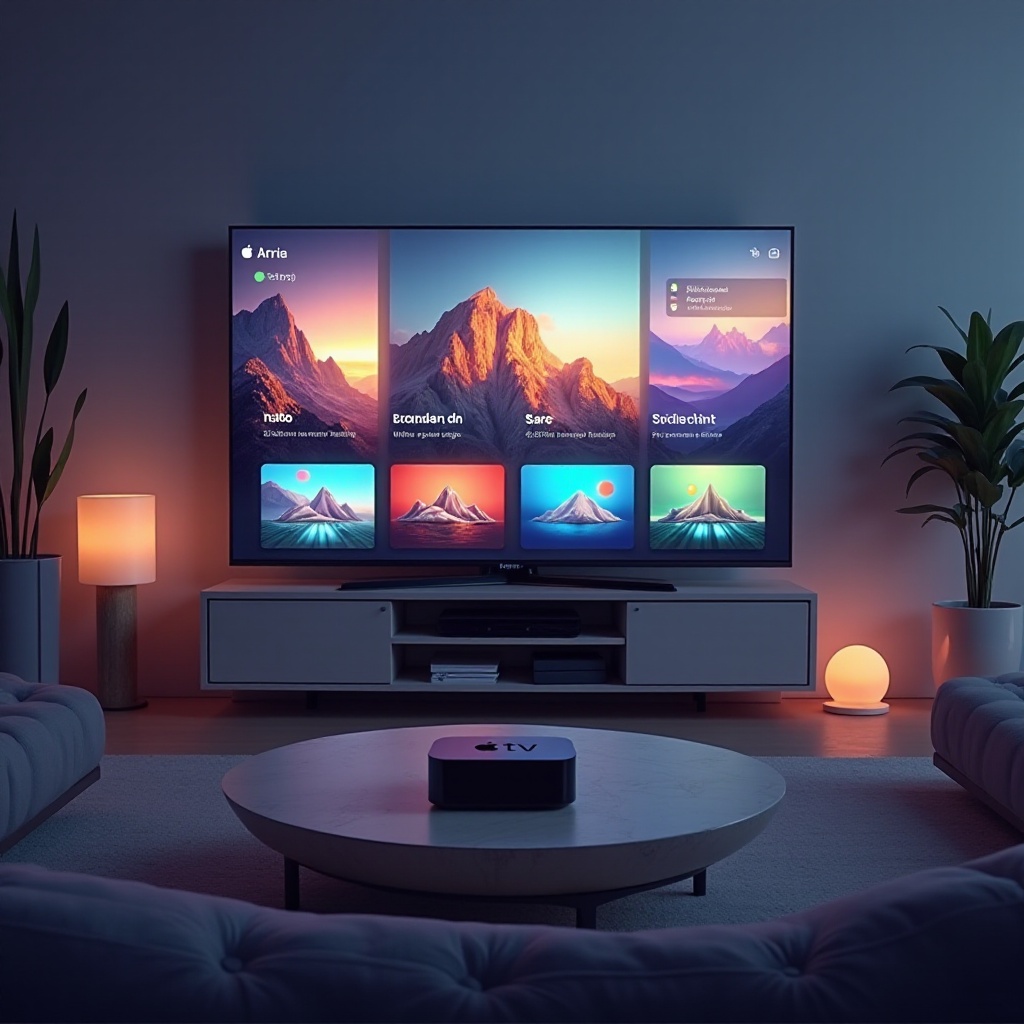
Apple TV offers a substantial variety of screensaver options catering to different preferences. You can choose from beautiful aerial views provided by Apple or add a more personal touch by using your own photos. Apple’s default aerial screensavers include high-definition visuals of notable landmarks and landscapes that are periodically updated, offering a fresh experience. Conversely, using your own photos allows for a unique and personalized setup. Understanding these options sets the foundation for an enhanced user experience. Now, let’s explore how you can change these settings.
Step-by-Step Guide to Changing Your Apple TV Screensaver
Accessing the Settings Menu
To start tweaking your screensaver settings, follow these steps:
1. Open your Apple TV and navigate to the home screen.
2. Select the ‘Settings’ app.
3. Scroll down and select ‘General’ to access further options.
Selecting Different Screensaver Categories
Upon accessing the General settings, you have several options:
1. Choose ‘Screensaver’.
2. You’ll see options like Aerial, Apple Photos, and My Photos.
3. For default aerial views, select ‘Aerial’, or ‘My Photos’ to display your personal images.
Using Aerial Screensavers
Aerial screensavers provide dynamic and captivating high-definition views:
1. In the Screensaver settings, select ‘Aerial’.
2. Pick from categories like ‘Earth’, ‘Cityscapes’, or ‘Underwater’.
3. Confirm your selection, and your Apple TV will download the selected screensaver if not already available.
Using Your Photos as Screensavers
For customizing with personal photos:
1. Navigate to ‘Screensaver’ in settings.
2. Choose ‘My Photos’.
3. Select an album from your iCloud photo library.
4. Set your chosen album, and it will become your screensaver.
Once you’ve customized your screensaver, you can also fine-tune it to match the different atmospheres in your home.
Customizing Screensavers for Different Moods
Your Apple TV screensaver can be adjusted to reflect the mood or ambience of your surroundings, adding to the adaptability of your home environment.
Day vs. Night Settings
Creating a smooth transition between day and night can enhance the ambiance:
– During daylight, use bright, dynamic images to complement natural lighting.
– In the evening, select darker, calming visuals to create a relaxing setting.
Seasonal Themes
As the seasons change, so can the visual themes on your screen:
– Bright autumn scenes in fall.
– Snow-laden vistas during winter.
– Cheerful blooms or beach visuals in spring and summer.
This customization elevates your viewing experience, making any gathering more enjoyable. However, should any issues arise with your screensaver settings, troubleshooting is fairly straightforward.
Troubleshooting Common Screensaver Issues
Screensavers can sometimes run into technical issues. This section helps you resolve these potential problems.
Screensaver Not Changing
If your screensaver doesn’t update:
– Verify your Apple TV’s connection to the internet as updates may require connectivity.
– Try restarting the Apple TV by unplugging it for a few seconds before reconnecting.
Blank Screensaver Issues
A blank screensaver can indicate:
– Check for a stable wireless connection.
– Re-select your screensaver category within settings.
With these solutions, your screensavers can perform optimally, allowing you to focus on enhancing their quality further.
Enhancing Your TV Experience with Custom Screensavers
To fully optimize the impact of your screensavers, consider these quality enhancement tips:
Tips for Selecting High-Quality Images
- Prefer high-resolution images to prevent pixelation.
- Choose images with vivid colors to help the screen stand out.
Best Practices for Creating a Cohesive Look
- Uniform themes or color palettes ensure smoother transitions.
- Arrange photos in a sequence that complements your room’s design scheme.
Conclusion
Changing your Apple TV screensaver is a simple yet impactful way to personalize your home entertainment system. By using this guide, you can easily change and tailor your screensaver to fit any mood or occasion. Refer back to this guide whenever necessary to adjust the settings, troubleshoot issues, or refresh your screensaver options for a more appealing atmosphere.
Frequently Asked Questions
How do I reset my Apple TV screensaver?
To reset the screensaver, navigate to Settings > General > Screensaver and reselect your preferred option to confirm.
Can I use videos as screensavers on Apple TV?
Currently, Apple TV does not support videos as screensavers. You can only use static images or Apple’s dynamic aerial screensavers.
Why is my Apple TV screensaver not working correctly?
Ensure your Apple TV is connected to the internet. Restart your device or check for software updates to resolve issues.