
Introduction
Connecting an Xbox controller to an iPad significantly enhances your gaming experience by providing precise controls and increased enjoyment. With the right setup, playing your favorite games on the iPad using an Xbox controller offers a console-like feel in a portable format. This comprehensive guide will help you connect and ensure a seamless performance.
Checking Compatibility Between Xbox Controllers and iPads
Before setting up, check your devices for compatibility. Xbox controllers compatible with iPads include models with Bluetooth functionality, such as the Xbox Series X|S controllers. Ensure that your iPad is running iPadOS 13 or later, as these versions support external controllers, including Xbox models. Confirming compatibility allows you to move forward confidently with the setup process.
Preparing Your Xbox Controller and iPad for Connection
To prepare for connection, both devices need to be updated to the latest software versions. On your iPad, go to Settings, then General, and select Software Update to check for updates. These updates ensure all drivers and features are current and reduce the chance of connectivity issues.
Additionally, make sure your Xbox controller is fully charged. A fully charged controller minimizes connectivity problems, leading to uninterrupted gameplay. With properly prepared devices, you can confidently proceed to connect them.
Step-by-Step Guide to Connect Your Xbox Controller to an iPad
Follow these steps to connect your Xbox controller to your iPad:
- Turn on your Xbox controller by pressing the Xbox button.
- Hold the Bluetooth pairing button on top of the controller until the Xbox button starts flashing.
- Open the Settings app on your iPad and go to the Bluetooth section.
- Make sure Bluetooth is enabled and wait for the Xbox controller to appear in the list of available devices.
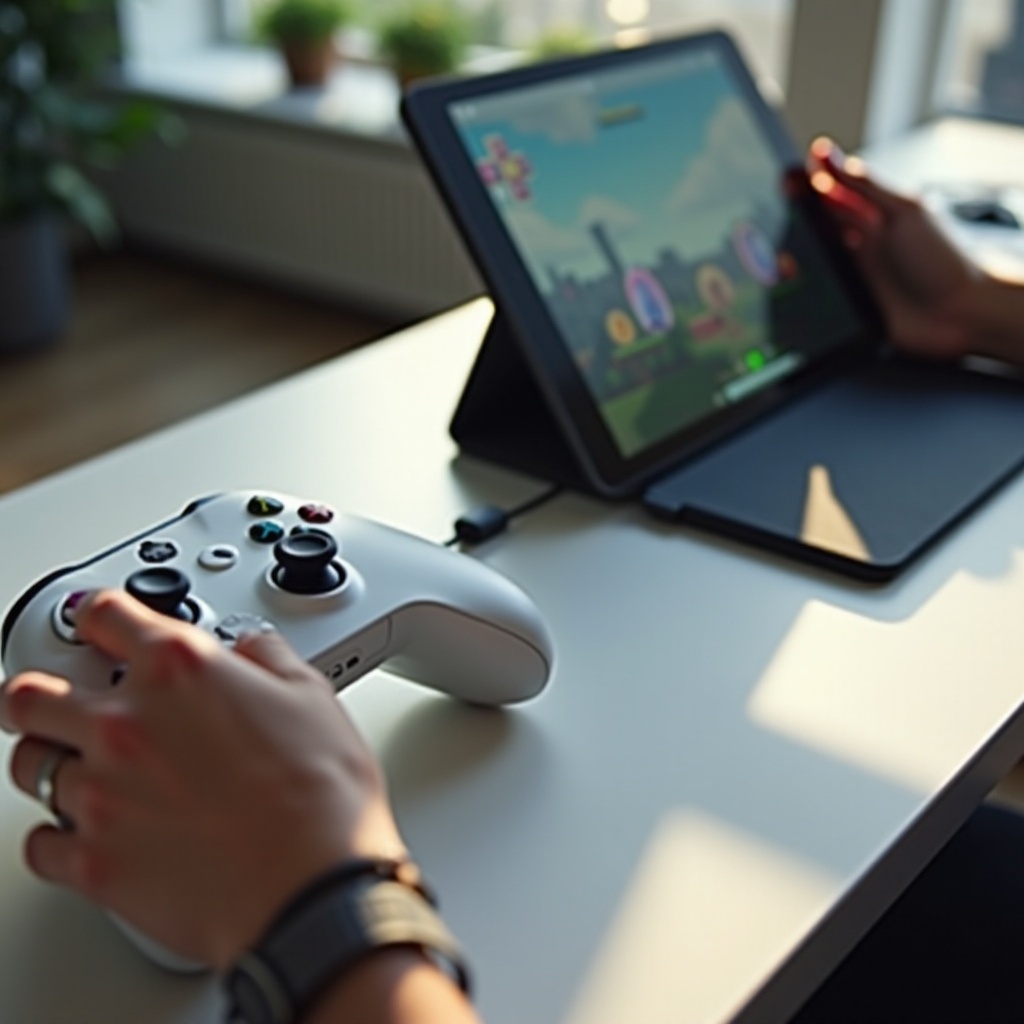
- Tap on the controller name to connect. Once connected, the Xbox button on the controller will stop flashing and stay lit.
Successfully connecting your controller allows you to enjoy a new gaming experience on your iPad.
Troubleshooting Common Connectivity Issues
Even with proper preparation, connectivity issues may arise. If you encounter problems, try these troubleshooting steps:
- Ensure both devices are close to each other to maintain a strong connection.
- Toggle Bluetooth off and on again on your iPad to reset the connection.
- Restart both your iPad and Xbox controller and attempt to reconnect.
- Remove the Xbox controller from the list of Bluetooth devices on your iPad and try reconnecting.
- Check for any software updates that might resolve the issue.
These solutions should address most connection problems, allowing a smoother gaming experience.
Optimizing Your Gaming Experience on iPad
With your Xbox controller connected, it’s time to optimize your gameplay. Customizing settings and choosing compatible games can significantly enhance your experience:
- ‘Customizing Controller Settings’: Head to your iPad’s settings to customize button configurations and sensitivity, tailoring your gaming experience to your preferences.
- ‘Best iOS Games for Xbox Controllers’: Explore titles like ‘Call of Duty: Mobile,’ ‘Asphalt 9,’ and ‘Fortnite,’ which offer robust controller support. Physical controls improve accuracy and enjoyment.
Optimizing these aspects ensures top performance and maximum enjoyment from your Xbox controller on your iPad.
Conclusion
Connecting your Xbox controller to your iPad opens up a world of gaming opportunities with superior controls and portability. By following the outlined steps, you can set up the devices and resolve any issues to make the most of your gaming experience. Adjusting settings and exploring compatible games elevate gameplay, ensuring an engaging and exciting experience.
Frequently Asked Questions
Can I use any Xbox controller with my iPad?
Not all Xbox controllers are compatible. Ensure yours has Bluetooth, like the Xbox Series X|S controllers.
Why won’t my Xbox controller connect to my iPad?
Ensure both devices are compatible and updated. Try restarting the devices, toggling Bluetooth, or resetting Bluetooth settings.
How can I improve battery life when using my Xbox controller with an iPad?
Turn off vibrations, reduce the Xbox button’s light, and fully charge your controller before use.