
Introduction
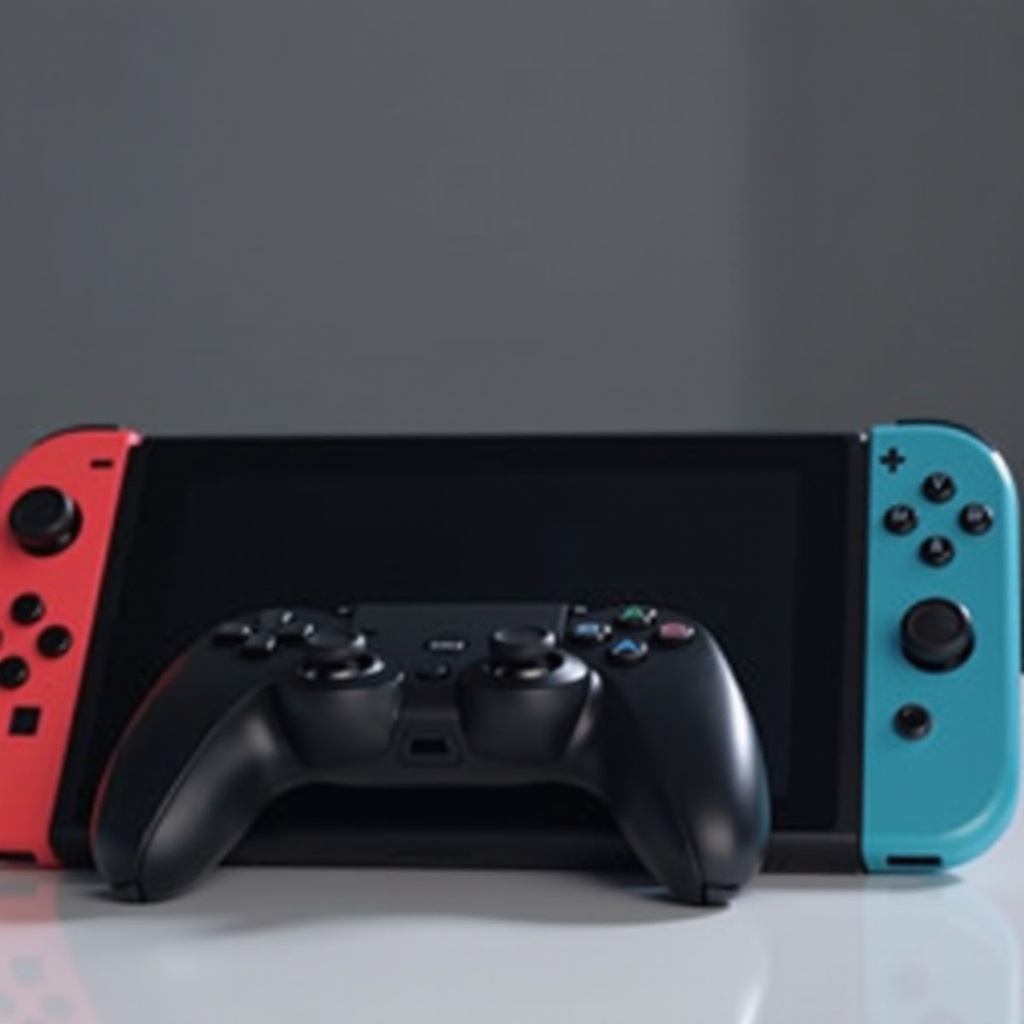
The Nintendo Switch controller has become a popular choice among gamers due to its ergonomic design and versatile functionalities. Yet, when it comes to using it on a PlayStation 4, there are significant challenges. This guide aims to equip you with all necessary knowledge—from understanding compatibility issues to the precise steps needed to make the connection successful.
Understanding Controller Compatibility
Cross-platform controller compatibility is crucial for gamers wishing to use their preferred devices interchangeably between consoles. However, this often introduces considerable technical challenges.
Why Gamers Want Cross-Platform Use
Gamers frequently want to employ a single controller across multiple gaming systems to enhance their overall experience. Familiarity with a specific controller can lead to improved performance and comfort while playing.
Technical Barriers and Innovations
Connecting a Nintendo Switch controller to a PS4 involves overcoming a number of technological restrictions, including differences in communication protocols between the two devices. Advancements in gaming accessories, particularly third-party solutions, are addressing these gaps effectively through innovative adapters.
What You Need to Connect a Nintendo Switch Controller to PS4
Before starting the connection process, you’ll need specific hardware and software to ensure a successful setup.
Essential Hardware and Accessories
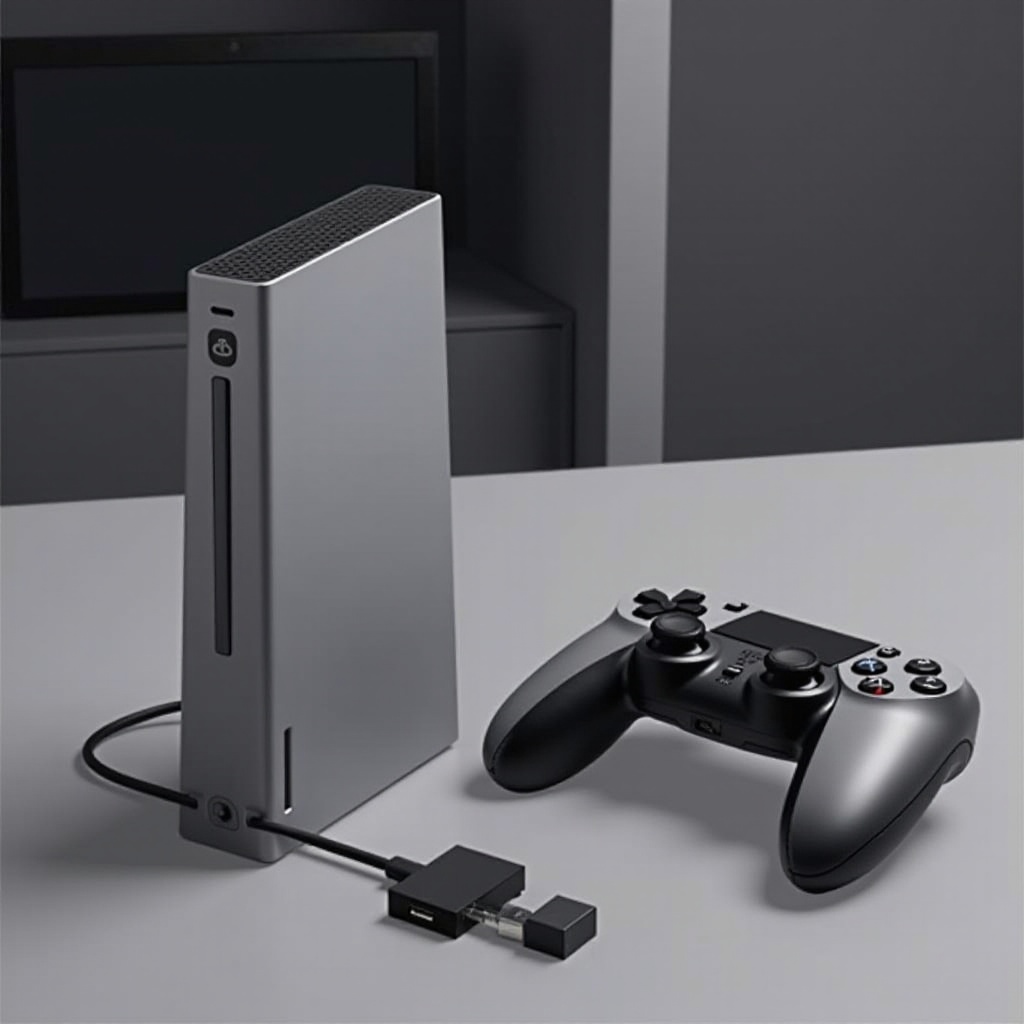
- Adapter: Obtain a compatible USB adapter like the 8BitDo Wireless USB Adapter 2.
- USB Cable: Some devices may require a USB cable for initial setup.
Software and Firmware Requirements
- Firmware Updates: It’s crucial to update both the PS4 and Nintendo Switch controller firmware to their latest versions.
- Adapter Configuration Software: You may need to download configuration software specific to your adapter for proper functioning.
Step-by-Step Guide to Connect Your Nintendo Switch Controller to PS4
Let’s break down the steps required to pair your Nintendo Switch controller with a PS4 console effortlessly.
Initial Setup of the Nintendo Switch Controller
- Charge Your Controller: Make sure your Nintendo Switch controller is fully charged before starting the process.
- Activate Pairing Mode: Use the button on top of the controller to enter Bluetooth pairing mode.
Initiating Connection on the PS4 Console
- Insert the Adapter: Connect the chosen adapter to one of the PS4’s USB ports.
- Pair Controller: Follow the adapter’s instructions to complete the pairing process. This typically involves pressing a pairing button on both the adapter and the controller.
Troubleshooting Common Issues
- Unresponsive Controller: Double-check that the adapter is correctly inserted and the controller is in pairing mode.
- Lag Issues: Ensure that the area is free from wireless interference, and check if there are updates available for your adapter.
- Firmware Check: Make sure that your controller and PS4 updates are current.
Benefits and Drawbacks of Using a Switch Controller on PS4
Understanding both the advantages and limitations of this setup will prepare you for the overall experience.
Advantages for Gameplay Experience
- Ergonomics: Many users find the Nintendo Switch controller more comfortable, which can lead to longer, more enjoyable gaming sessions.
- Familiarity: Players who are accustomed to the layout of the Nintendo Switch can transition smoothly without having to readjust to different button placements.
Potential Limitations to Consider
- Limited Features: Some features exclusive to the PS4 may not work when using a Nintendo Switch controller.
- Possible Lag: The extra complexity of using adapters could potentially introduce slight input delays in some scenarios.
Recommended Adapters for Optimal Performance
Choosing the right adapter is essential for ensuring a frustration-free gaming experience. Here’s a look at some of the top-rated options available in 2024.
Top Choices Available in 2024
- 8BitDo Wireless USB Adapter 2: Known for its seamless compatibility and minimal input lag.
- Brook Super Converter: Offers broad compatibility and straightforward setup, making it a great choice for beginners.
Installation and Configuration Tips
- Quick Start Guide: Carefully follow the manufacturer’s instructions provided with the adapter.
- Test Settings: Experiment with button mapping and other settings to optimize your experience.
Enhancing Your Gaming Experience
Beyond getting your controller working, there are additional ways to enrich your gaming setup.
Customization Tips and Tools
- Button Mapping: Utilize third-party tools to customize your button layout and other features according to personal preference.
- Profile Settings: Some adapters allow for multiple gaming profiles that can be set up for different games or players.
Community Insights and Feedback
Actively participating in gaming communities or forums can provide useful feedback and insights from others who have successfully navigated similar setups, offering you real-world solutions and advice.
Conclusion
Using a Nintendo Switch controller on a PS4 transforms your gaming interaction, although it requires overcoming certain technical hurdles. With the correct adapters and proper setup, you can enjoy a gaming experience that is personalized to your preferences. Always ensure to keep your devices updated and adapt based on your gaming needs.
Frequently Asked Questions
Can I use any adapter to connect a Switch controller to PS4?
You should select an adapter specifically marked for cross-platform use, such as the 8BitDo Wireless USB Adapter.
Are there any lag issues when using a Switch controller on PS4?
Minor input lag may occur but can often be minimized by using high-quality adapters and maintaining a strong Bluetooth connection.
Do I need special software to configure my Switch controller for PS4 use?
Some adapters require initial configuration software, often provided by the manufacturer, to enable optimal performance.