
Introduction
Vizio TVs deliver stunning visuals, but achieving excellent sound is vital for an immersive experience. Quality audio enhances everything from movies to sports. This guide provides actionable solutions for optimizing your Vizio TV’s sound output, ensuring every note and word is crystal clear.
Understanding Vizio TV Sound Features
Before adjusting settings, familiarize yourself with your Vizio TV’s audio capabilities. Each model includes distinct sound modes such as Standard, Movie, and Music, designed to complement different content types. Selecting the appropriate mode can dramatically improve your listening experience.
However, knowing the features alone doesn’t solve everything. Understanding typical sound issues, like muffled audio or lack of depth, prepares you to address potential problems proactively.
Setting Up Your Vizio TV Sound Settings
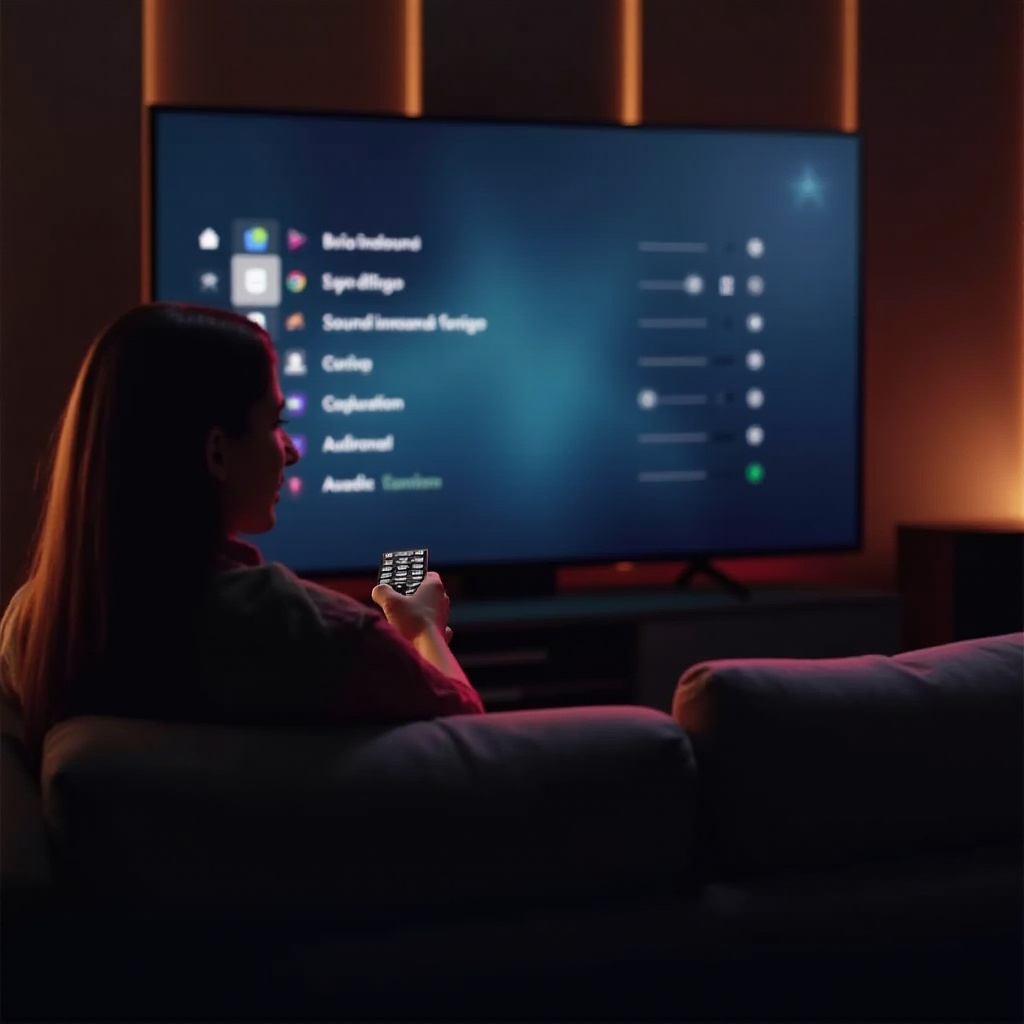
To enhance sound quality, start by configuring your TV’s audio settings. Here’s how to access these options:
- Press ‘Menu’ on your Vizio remote.
- Navigate to ‘Audio’ or ‘Settings’ using the arrow keys.
- Select ‘Audio Settings’.
In this menu, you’ll find several modes:
- Standard Mode: Suited for general TV broadcasts, offering a balanced audio profile.
- Movie Mode: Enhances dialogue clarity, softening background noises, ideal for films.
- Music Mode: Increases clarity and richness, perfect for music channels.
- Custom Mode: Tailor your sound by adjusting bass, treble, and balance.
After making these adjustments, you should notice a marked improvement in audio quality. If you’re after an even better sound, consider adding external equipment.
Enhancing Sound Output with External Devices
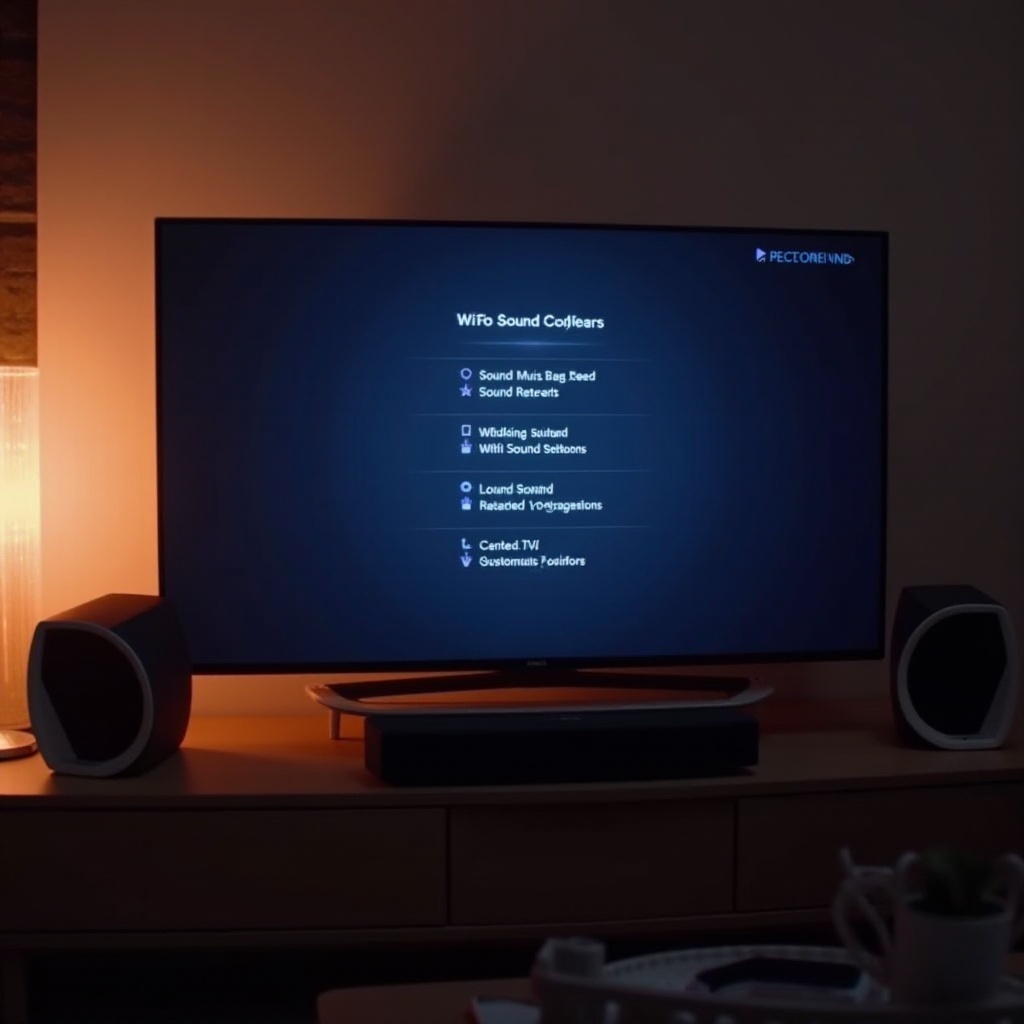
For those seeking superior sound, integrating external audio devices such as soundbars or home theater systems is key. These units significantly enhance your TV’s audio performance.
To connect external audio devices, follow these steps:
- Soundbars:
- Use HDMI ARC (Audio Return Channel) for optimal sound quality.
-
Alternatively, an Optical Digital Cable can be employed if HDMI isn’t available.
-
Home Theater Systems:
-
Connect through an AV receiver, utilizing HDMI connections for full surround sound.
-
Bluetooth Devices:
- If your Vizio model supports Bluetooth, activate it on both devices and pair them.
Integrating these devices can transform your viewing experience, enhancing clarity and depth. With external devices in play, let’s delve into resolving possible sound issues.
Troubleshooting Common Sound Issues
Even with a perfect setup, audio problems may occur. Here’s how to tackle some common issues:
- No Sound:
- Check if the volume is muted or too low.
-
Ensure the audio outputs are correctly connected.
-
Static or Distorted Sound:
- Examine cables for wear or damage.
-
Test the issue across various channels to rule out broadcast problems.
-
Bluetooth Connection Problems:
- Confirm both devices are in pairing mode.
- Restart the TV and try re-enabling Bluetooth.
Should these solutions fail, consulting Vizio’s support team might be necessary. With these troubleshooting techniques, you can maintain optimal audio quality.
Conclusion
Optimizing your Vizio TV’s sound output involves a mix of understanding the features, fine-tuning settings, and, if necessary, incorporating external audio devices. By applying the strategies outlined in this guide, you will enjoy a rich and immersive audio experience, making your TV moments truly spectacular.
Frequently Asked Questions
How do I reset my Vizio TV sound settings to default?
Access the ‘Audio’ menu, select ‘Reset Audio’, and confirm to restore factory settings.
Why is there no sound coming from my Vizio TV?
Ensure the TV isn’t muted, check audio output connections, and inspect cables for damage.
Can I use Bluetooth speakers with my Vizio TV?
Yes, if your model supports Bluetooth. Activate pairing mode on both devices and connect.