
Introduction
Your iPhone seamlessly keeps you connected to your work, family, and friends. But what should you do when it suddenly stops ringing for incoming calls? This common issue can be perplexing and inconvenient. Before rushing to a service center, explore some simple adjustments and checks right from your home.
Quick Checks to Ensure Your iPhone Can Ring
Begin with some fundamental checks that might swiftly fix the issue of your iPhone not ringing.
-
Verify Silent Mode and Volume Settings: It’s easy for iPhones to slip into silent mode accidentally, often when they’re handled or stored in pockets without a case. Make sure the silent switch on your device side is not set to mute. Additionally, ensure the volume is turned up by pressing the volume buttons on the side of your iPhone.
-
Check for Do Not Disturb Mode: The ‘Do Not Disturb’ and ‘Focus’ features are useful for managing notifications and alerts, yet they can also mute your phone. Access the Control Center or Settings to verify these are not active, which might inadvertently silence your phone.
-
Ensure Ringtone Is Set Correctly: Misconfigured ringtones can lead to incoming calls being unheard. Head to Settings > Sounds & Haptics > Ringtone to affirm that a ringtone is selected and audible.
Completing these quick checks can frequently resolve the issue. If not, further troubleshooting might be required.
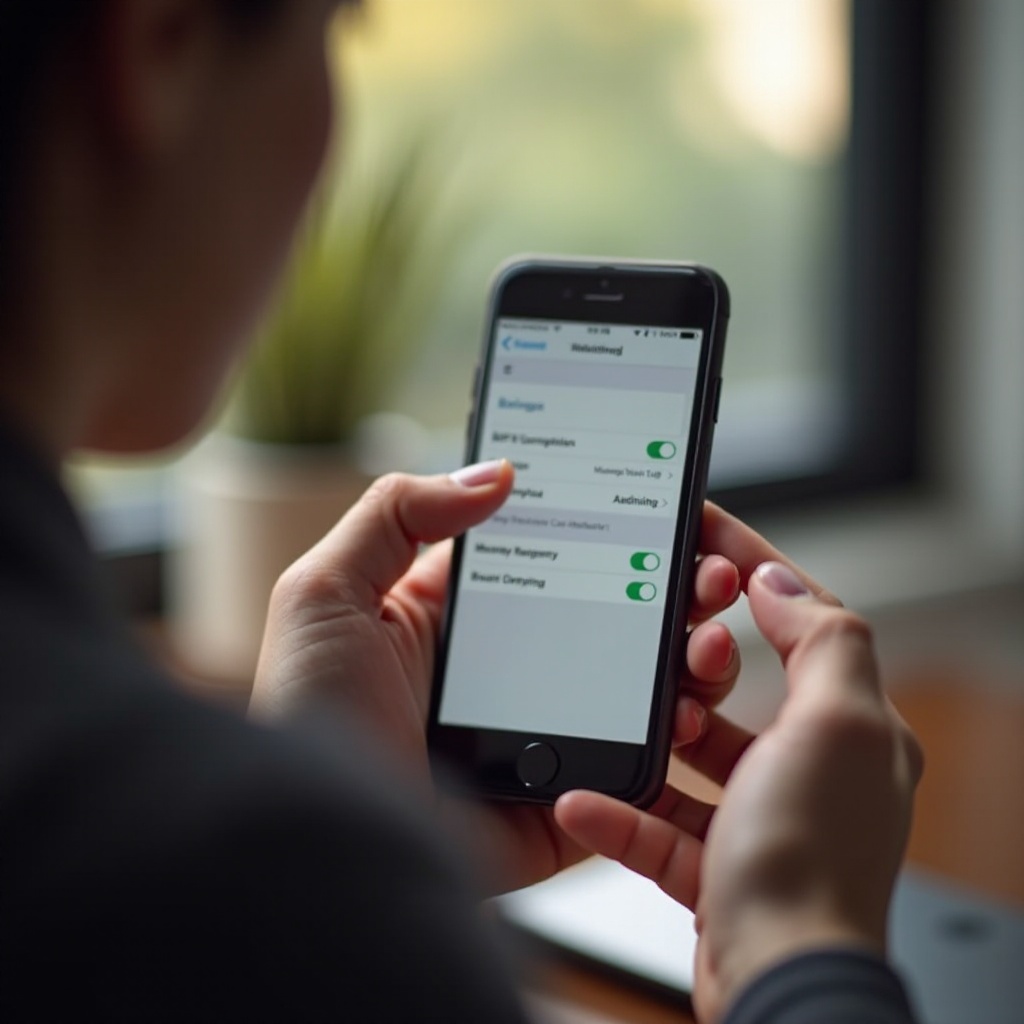
Advanced Troubleshooting Steps
If basic checks do not solve the problem, consider advanced troubleshooting steps that address the software side of your iPhone.
-
Update Your iOS to the Latest Version: iOS updates frequently include crucial bug fixes and enhancements. Check if your iPhone has these latest updates by going to Settings > General > Software Update. Completing this step can resolve many unexpected behaviors, including sound issues.
-
Reset All Settings Without Data Loss: At times, custom configurations can impede sound functionalities. To reset, go to Settings > General > Reset > Reset All Settings. This approach clears custom settings but keeps your data intact, potentially resolving the sound dilemma.
-
Explore Installed Third-Party Apps Impact: Certain apps might interfere with system functions such as sound. Review recently installed apps to identify if they coincide with the onset of the issue. Consider removing or updating these apps.
While software fixes often address the majority of ringing issues, it’s essential to consider hardware aspects if sound problems persist.
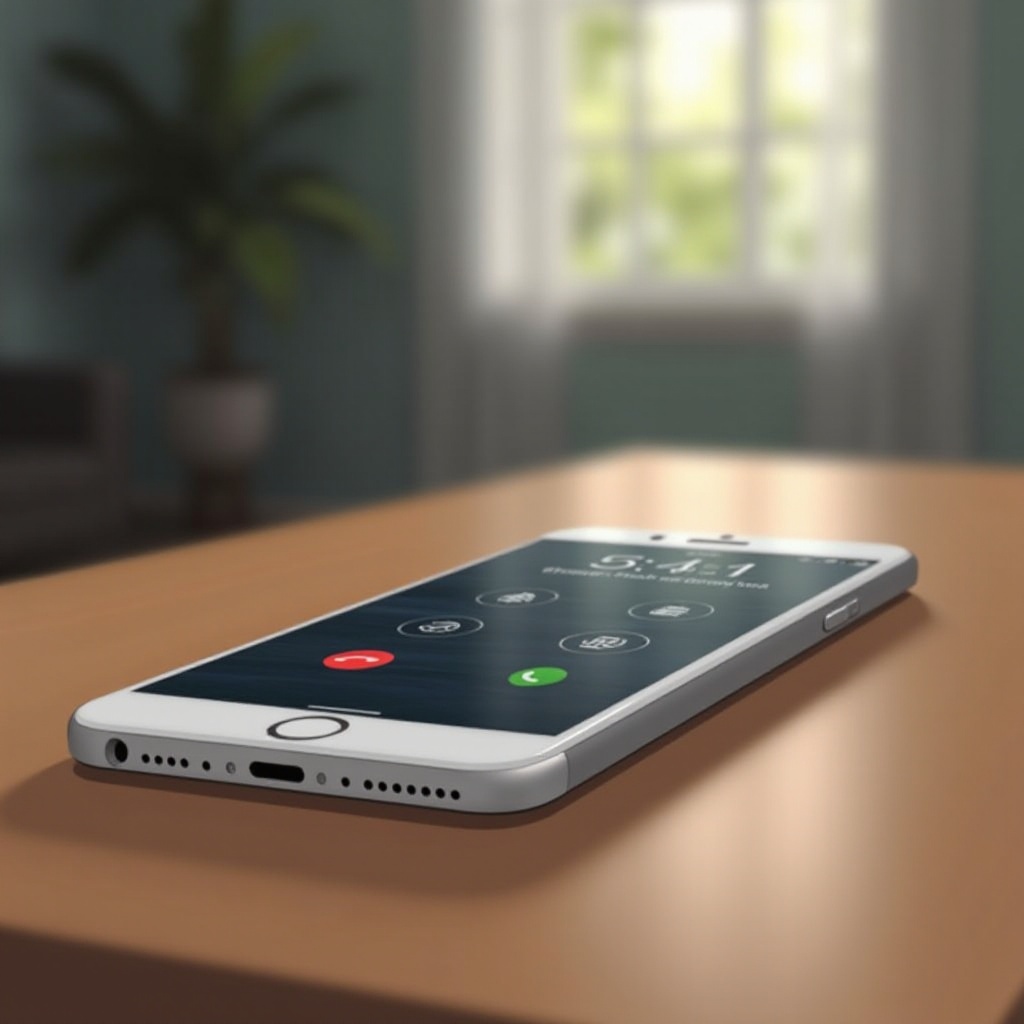
Addressing Potential Hardware Issues
When software adjustments do not work, hardware could be the cause. Investigate the device physically with these steps.
-
Examine Hardware for Damage: Look closely at the speaker located at the bottom of your iPhone for dust or physical damage. Use a clean brush to gently clear any visible debris.
-
When to Visit an Apple Store: Persistent problems that resist software fixes and hardware inspections might require professional evaluation. Visiting an Apple Store or authorized service center can provide definitive insight and repair.
Even with diligent maintenance of iOS adjustments, some issues may require expert assistance.
Software Solutions to Prevent Future Issues
Optimizing your phone’s settings can prevent similar problems in the future. Systems often have capabilities that can be fine-tuned for better performance.
-
Use Focus Features Wisely: iOS’s Focus Mode improves upon Do Not Disturb by allowing precise control over notifications and calls. Customize settings to allow essential calls, preventing accidental phone muting.
-
Regularly Update Apps and System Software: Updates strengthen compatibility and function, reducing unexpected app interactions. Regularly update both apps and system software to minimize risks of interference affecting your phone’s ability to ring.
Being proactive about managing your iPhone ensures seamless functionality, reducing the chance of facing a repetitive non-ringing scenario.
Conclusion
Addressing the issue of an iPhone not ringing for incoming calls largely revolves around careful settings evaluation and proper maintenance. Employ these steps to verify and adjust your device’s configurations, addressing software and hardware concerns alike to prevent recurrence.
Frequently Asked Questions
Why is my iPhone not ringing even though it’s not on silent?
It might be due to Do Not Disturb or Focus features or an issue with ringtone settings.
Can a broken speaker cause my iPhone not to ring?
Yes, a damaged or clogged speaker can impact sound output, affecting ringing functionality.
How do I reset my iPhone settings without losing data?
Go to Settings > General > Reset > Reset All Settings to clear settings without affecting personal data.