
Introduction
When your iPad won’t hold a charge, it disrupts your routine, whether for work, entertainment, or staying connected. Understanding why this happens can help you solve the issue efficiently. In this guide, we’ll explore common reasons your iPad may not be charging properly and provide actionable solutions you can implement. We’ll also discuss when to seek professional help, ensuring your iPad stays reliable.
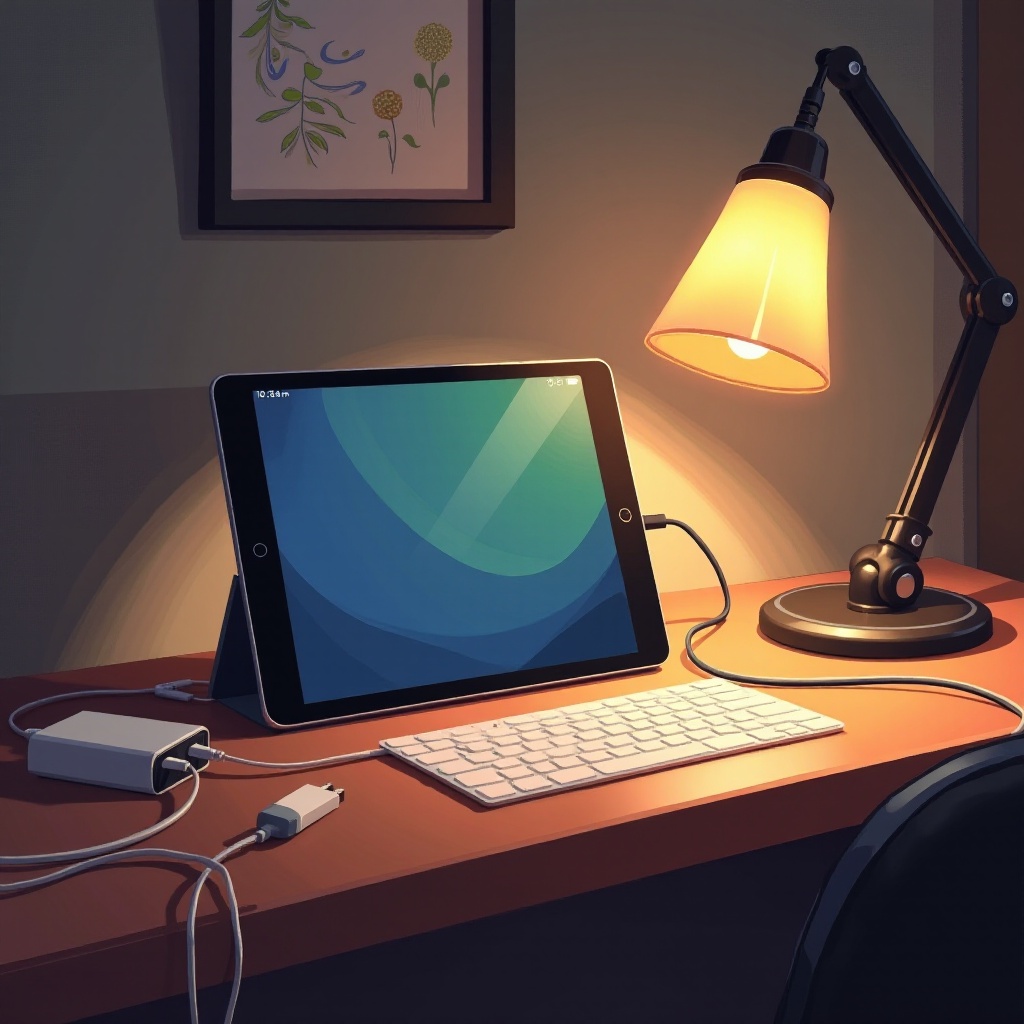
Common Causes of Charging Problems
Understanding the root cause of charging issues is the first step in resolving them. There are several reasons why your iPad might not be holding a charge effectively.
-
Hardware Malfunctions: Over time, components such as cables, adapters, and the charging ports can degrade or become damaged, affecting the charging process.
-
Software Glitches: Software plays a key role in charging efficacy. Glitches in iOS can cause charging problems. Ensure your operating system is updated to avoid known bugs.
-
iOS Update Impacts: New iOS updates sometimes lead to unforeseen issues, including affecting battery performance. While updates generally improve functionality, they can occasionally introduce problems.
These common causes inform how we tackle the issue, guiding the identification of a suitable remedy.
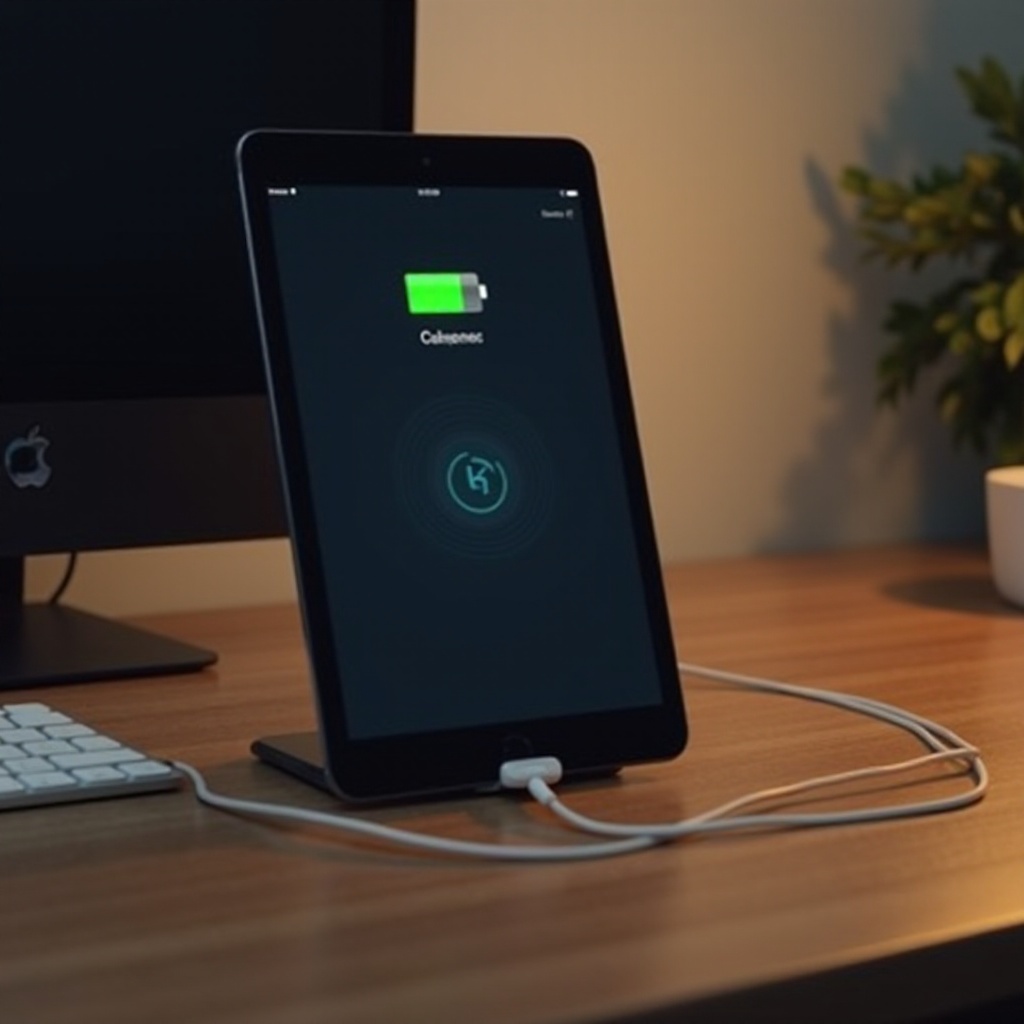
Quick Fixes to Try First
Addressing charging issues quickly can save time and get your iPad back to normal sooner. Here are some simple steps to start with:
-
Reconnect the Charging Cable and Adapter: Ensure a firm connection to both the iPad and the power outlet. Unplugging and replugging can sometimes solve loose connection issues.
-
Switch Power Sources: Test with another outlet or power strip. It’s possible that the issue lies within the power source rather than the iPad. Trying a different charger is also a helpful diagnostic tool.
-
Restart Your iPad: A quick restart can fix many software-related glitches. Hold the ‘Power’ button until the slider appears to turn off the device, and after a few seconds, press the ‘Power’ button again to restart.
If these quick fixes don’t resolve the issue, it’s time to proceed to more comprehensive diagnostic steps.

In-Depth Diagnostic Steps
For persistent problems, a deeper examination of your iPad’s charging system is warranted.
-
Inspecting and Cleaning the Charging Port: Dust and lint can obstruct the charging port, hindering proper connection. Gently clean the port using a small brush or compressed air, avoiding metal objects that might damage it.
-
Testing with Different Cables and Adapters: Attempt charging with official Apple products to rule out incompatibility issues, as third-party cables may not meet power requirements.
-
Checking for Battery Health: Navigate to ‘Settings’, ‘Battery’, and then ‘Battery Health’ to assess battery performance. A compromised battery may point towards needing a replacement.
A thorough diagnostic process can uncover underlying issues, guiding us to more precise solutions.
Advanced Solutions for Persistent Issues
When simpler solutions fail, more comprehensive actions might be necessary.
-
Utilizing Apple Diagnostics Tools: Use Apple’s diagnostic tools to identify deeper hardware and software problems, available through Apple Support or an Apple Store visit.
-
Managing App Activity and Permissions: Some apps are power-hungry. Check ‘Settings’, go to ‘Battery’, and review app usage statistics. Consider closing or uninstalling unnecessary power-draining apps.
-
Restoring the iPad Through iTunes: If problems persist, backing up and restoring your iPad through iTunes can remove software conflicts. This step should be a last resort after backing up important data.
These advanced steps can tackle persistent charging issues more effectively, ensuring continuity of usage.
When to Seek Professional Help
If you’ve tried all steps and your iPad still won’t charge, professional help may be necessary.
-
Recognizing Critical Hardware Failures: In cases of unresolvable issues, internal hardware failures might be the cause. A professional assessment can determine if repairs or replacements are needed.
-
Navigating Warranty and Repair Options: If under warranty, Apple can provide cost-effective repair solutions. Verifying warranty status and consulting Apple Support can guide your next steps.
Knowing when to bring in professionals ensures your iPad returns to full functionality efficiently.
Conclusion
Charging issues with your iPad shouldn’t disrupt your life. By identifying common problems and applying targeted fixes, you can often solve these issues independently. From simple adjustments to more in-depth diagnostics, solutions abound for most charging problems. Seeking professional help is always an option if home solutions fall short. Keep your iPad maintained for optimized performance and longevity.
Frequently Asked Questions
Why does my iPad charge slowly?
Slow charging may be due to a weak power source, a faulty cable, or high background activity. Testing different cables and outlets can help identify the issue.
How can I check my iPad’s battery health?
Go to ‘Settings’, select ‘Battery’, and then ‘Battery Health’ to see your battery’s health status and performance insights.
Is it safe to use third-party chargers for my iPad?
While some third-party chargers are safe, using certified Apple products is best to ensure compatibility and device safety.